Insight

How to showcase your app in the App Store and Google Play

How to showcase your app in the App Store and Google Play

Courtney Smith

Your store listing is the last thing someone sees before they decide whether to download your app. It's your shop window. You can spend months getting the product right, but if the listing doesn't show people why your app is worth their time, many of them will scroll straight past.

That window has just been redesigned. At WWDC in June, Apple announced Creative Assets, a new kind of marketing image and video that sits at the top of your App Store product page and appears in search results. They're arriving this autumn with iOS 27, so now is a good time to look again at how your app presents itself in both stores.

In this guide, we'll explain what's changed, the basics that still matter, how Google Play compares and the things we'd want you to be aware of before you start.
 

What's changed on the App Store

Until now, your App Store listing has relied mostly on screenshots and app preview videos. Both are designed to show the app itself: its screens, its features and how it works.

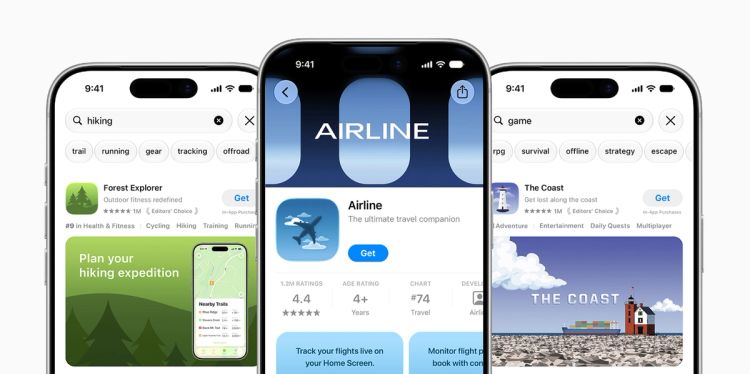
Creative Assets work differently. They're images and videos with a marketing job, a bit like the hero banner at the top of a well-designed website. There's room for your brand, a seasonal campaign, a feature launch or new content, and they don't need to be a capture of your app's interface. Apple says they can appear in two new places:

apple creative assets
  • The product page header. A large image or video at the very top of your listing, above everything else.
  • Search results. Your asset can appear when people search the App Store, including search in the Apple Games app.

You'll manage them in a new Asset Library in App Store Connect, which brings your screenshots, preview videos, in-app event media and Creative Assets together in one place. Apple is also adding a product page preview tool, so you can see how everything fits together before it goes live.


Why this matters

Two changes stand out.

First, the header now sits above your screenshots. For years, the standard advice has been to put your strongest message in your first screenshot, because it's the first thing people see. With a header in place, that's no longer the case. If you've carefully planned your screenshot order, it's worth revisiting it with the header in mind.

Second, approved Creative Assets go live without an app update. Until now, changing your store visuals has usually been tied to a new release. Now your store presence can follow your marketing calendar instead. If you're running a Christmas campaign or announcing a partnership, your listing can reflect it on the day.


The basics still count

Creative Assets add a new layer to your listing, and everything that was already there still matters. Screenshots and preview videos still do the heavy lifting of showing people what your app actually does, and they're still what most people will look at when deciding whether to download.

Here's what each part of your listing is for:

  • App icon. Your first impression in search results and on the home screen. It should be simple, recognisable at small sizes and distinct from your competitors.
  • Name and subtitle. These tell people what your app is and what it does for them, in as few words as possible. They also play a part in how people find your app in search.
  • Screenshots. Lead with the benefit. A caption that says what someone can achieve tells a much stronger story than a screen on its own.
  • App preview video. Show the app being used and get to the point quickly. Many people watch with the sound off, so make sure it works without audio.
  • Promotional text. A short line above your description that you can change at any time without an update. It's useful for news, offers and timely messages.
  • Custom product pages. Alternative versions of your listing, each with its own screenshots, preview videos and promotional text, that you can link to from specific campaigns. If your app serves more than one type of user, each of them can see the version that's most relevant to them.
 

Don't forget Google Play

Most apps live in both stores, and your Android users deserve the same attention as your iPhone users. Google Play doesn't have a direct equivalent of Creative Assets, but it has its own tools for presenting your app well.

What you want to do

App Store

Google Play

Make a strong first visual impression

Creative Assets in the product page header

Feature graphic and promo video at the top of your listing

Show what the app does

Screenshots and app preview videos

Screenshots and promo video

Tailor the listing to different audiences

Custom product pages

Custom store listings

Test what works best

Product page optimisation

Store listing experiments

Promote timely content

In-app events and promotional text

Promotional content

The specifications and rules differ between the two stores, so plan your assets for both from the start. Resizing your Apple designs for Google Play the week before launch rarely does either store justice.


Things to watch out for

The new placements are a real opportunity, but there are a few things we'd want any app owner to know before diving in.

  • Assets still need to reflect the real app. Creative Assets can be more brand-led than screenshots, but Apple reviews them under the same rules that cover accurate metadata (section 2.3 of the App Review Guidelines) and its advertising policies. Showing features your app doesn't have is a quick route to rejection.
  • There are content rules. Apple has published guidance on what the images and videos can and can't contain, and the assets need to carry a 4+ age rating, whatever your app's own rating. Read the guidance before you brief a designer, rather than after.
  • Not everyone will see them. The new placements only appear on iOS 27 and iPadOS 27 or later. People on older versions will still see your listing as it looks today, so your screenshots need to work on their own too.
  • Someone needs to own them. Because assets can change without an app update, it's easy for them to go out of date, or for nobody to be sure whose job it is to change them. Decide who updates your store visuals, who signs them off and how often you'll review them.
  • Test rather than guess. What you expect to work and what actually works are often different. Custom product pages, product page optimisation and Google Play's store listing experiments let you compare versions and follow the results.
  • Timings may shift. Apple has said the new tools are arriving this autumn, and rollouts can be gradual. Check Apple's What's New page for what's available before you plan a campaign around it.
 

Getting your store presence right

Your listing is part of your app, and it deserves the same care as the product behind it. At The Distance, we build apps for iOS and Android, and we know how much those first few seconds in the store matter. If you're planning a new app or thinking about what's next for an existing one, we'd love to hear about it.

 
contact us

Apply theses insights

Contact us to discuss how we can apply theses insights to your project